How to record audio directly on the platform?
Learn how to add voice recordings to your exercises and assessments, without leaving Intuitivo.
You can record audio directly on the platform, without needing external tools. The recording option is available in the statement of each exercise, via the audio icon.
Who can use it?
Teachers: in any rich text field, such as exercise statements, multiple choice options, ordering, among others.
Students: in their answers, whenever the field allows it.
Note: Audio recording by students involves sensitive data. For this reason, we recommend that you ask the parent or guardian for permission beforehand, explaining the purpose of the recording, before using this feature.
How to record or upload audio
Open the exercise or assessment you want to edit.
In the text editor, click the audio recording icon.
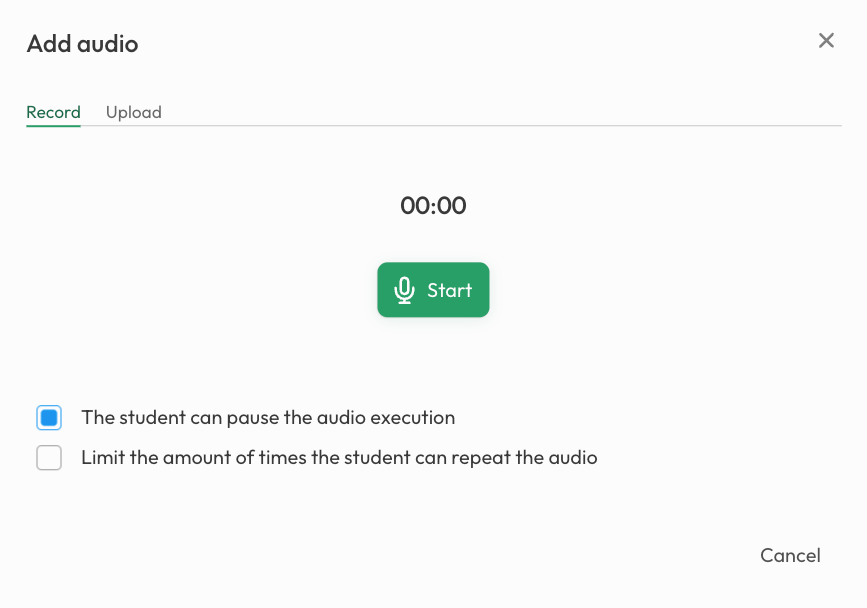
Choose one of the available options:
Record - record new audio directly on the platform and confirm when you're done.
Upload audio - select an existing audio file from your device.
Note: The first time you use recording, your browser may ask for permission to access your device's microphone. Simply accept to continue.
Playback settings
After adding the audio, the teacher can configure the following playback options:
Allow pause: sets whether the student can pause the audio playback.
Playback limit: sets the maximum number of times the student can listen to the audio.

Was this helpful?
Still need help? Share an idea